Get event info
Attendee Names include:
- Eddy Patron
- Herman Melville
- Etta James
- Henry Aaron
- Amy Poehler
- Zelda
- Five Unicorns
- Henry James

Attendee Names include:
To use Timed Text Change Shortcode or have it modified for your needs, get the code, use another Compact WP Plugin or have a Compact WP Plugin made for your feature(s), contact us now.
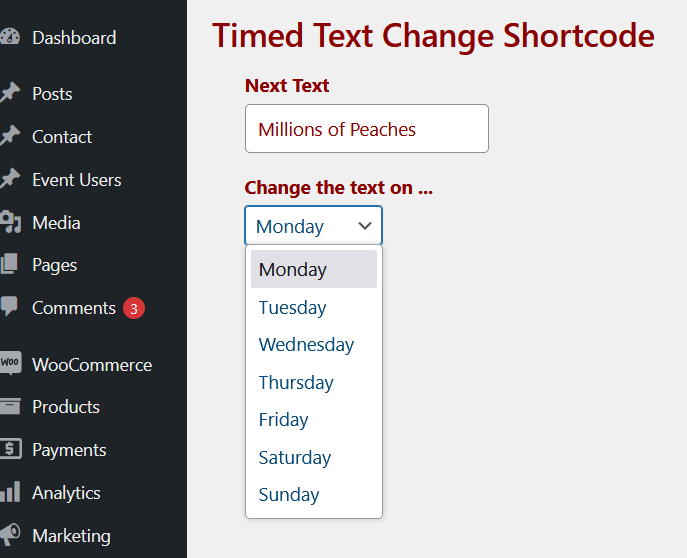
With Timed Text Change Shortcode you can change text automatically on any given day of the week using text you enter in the WP dashboard and a shortcode. Nice!
Performative as heck, Compact WP Plugins are created by the great minds at WP Facilitate. We would love to modify and scale them to your specifications and/or create new Compact WP Plugins (or complex plugins) just for you! Contact us now with your questions and required WordPress features
You can add the code to your functions.php file or a plugin like Code Snippets. It will create a “Simple Shortcode” option on the left side admin menu bar. Clicking that will take you to an admin page where you will be able to enter the next location text. The shortcode to place the text is simpsc-location.
As the shortcode will currently render (if its still Tuesday where you are), “The next location is announced on Wednesday,” you will need to take today’s day out of the array, $simpsc_date_array_one to test the code.
//Add admin page
add_action( 'admin_menu', 'simpsc_add_options' );

function simpsc_add_options() {
    add_menu_page(
        __( 'Simple Shortcode', 'textdomain' ),
        __( 'Simple Shortcode', 'textdomain' ),
        'manage_options',
        'simple-shortcode-options',
        'simple_shortcode_options'
    );
}

function simple_shortcode_options() {
    $simpsc_next = get_option( '_simpsc_next' );
    ?>
    <form class="simpsc-form" action="<?php echo esc_url( site_url() ); ?>/wp-admin/admin-post.php" method="post" enctype="multipart/form-data">
        <input type="hidden" name="action" value="process_simpsc">
        <?php wp_nonce_field( 'simpsc_options', 'simpsc' ); ?>
        <label>Next Location:</label>
        <input type="text" name="simpsc-next" value="<?php if ( $simpsc_next ) { echo esc_html( $simpsc_next ); } ?>">
        <input type="submit" value="Save">
<?php }

//Add admin CSS
add_action( 'admin_head', 'simpsc_add_admin_css' );

function simpsc_add_admin_css() { ?>
    <style>
        .simpsc-form {
            margin: 20px;
        }
    </style>
<?php }

add_shortcode( 'simpsc-location', 'simpsc_location');

function simpsc_location() {
    $simpsc_next = get_option( '_simpsc_next' );
    $simpsc_date_array_one = array( 'Sunday', 'Monday', 'Tuesday' );
    $simpsc_date = date( 'l' );
    if ( in_array( $simpsc_date, $simpsc_date_array_one ) ) {
        $html = "<p>The next location is announced on Wednesday<p>";
    }
    else {
        $html ="<p>Next Week's location is " . $simpsc_next . "</p>";
    }
    return $html;
}

//Process form
add_action( 'admin_post_process_simpsc', 'process_simpsc' );
add_action( 'admin_post_nopriv_process_simpsc', 'process_simpsc' );

function process_simpsc() {

if ( ! wp_verify_nonce( $_POST['simpsc'], 'simpsc_options' ) ) {
    return;
}

if ( $_POST['simpsc-next'] ) {
    $simpsc_location = $_POST['simpsc-next'];
    update_option( '_simpsc_next', $simpsc_location );
}

wp_safe_redirect( site_url() . '/wp-admin/admin.php?page=simple-shortcode-options' ); exit();
}The following JavaScript and CSS should make it so, when on mobile, that the submenus will open on a click on their respective menu items. We may also need to work on this a bit as it has not been tested on your site.
Reminder: it is always best to test things out on a staging site if possible!
Here’s how to apply JS and CSS to your site …
add_action( 'wp_footer', 'add_ultra_js' );

function add_ultra_js() { ?>
<script>
if ( window.screen.width < 600 ) {
       let ultraNavMenuTwo = document.querySelectorAll( 'li' );
       for ( let i = 0; i < ultraNavMenuTwo.length; i++ ) {
           if ( ultraNavMenuTwo[i].classList.contains('wp-block-navigation-submenu') ) {
        ultraNavMenuTwo[i].firstChild.addEventListener( "click", ultraToggleSubMenuTwo );
        ultraNavMenuTwo[i].style.cursor = "pointer";
           }
       }
    }

    function ultraToggleSubMenuTwo( e ) {
        let ultraNavSubmenuTwo = e.target.nextSibling.nextSibling;
        ultraNavSubmenuTwo.classList.toggle( "active" );
    }
</script>
<?php }.ultraOpenSubmenu {
display: block;
}To use User Expiry, get the code, use another Compact WP Plugin or have a Compact WP Plugin made for your feature(s), contact us now
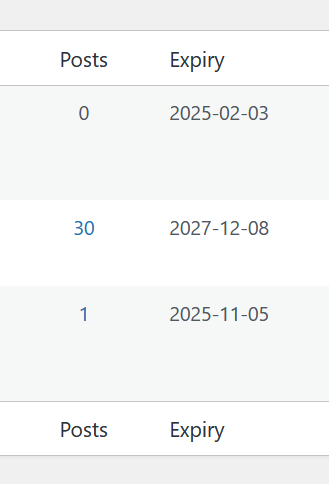
User Expiry allows for setting an expiration date for users on the Users page in WordPress Admin.

This plugin regularly checks for users that have expiration dates and deactivates the permissions of users that have expired.


Performative as heck, Compact WP Plugins are created by the great minds at WP Facilitate. We would love to modify and scale them to your specifications and/or create new Compact WP Plugins (or complex plugins) just for you! Contact us now with your questions and required WordPress features
Here are two possible fixes for the issue you are facing. A template customization and a code snippet. Important note: Neither solution may work as the only way to test the solutions fully is to apply things on your site. If they don’t work, we’ll keep working.
This solution requires adding a file to a theme or a child theme in order to override the WooCommerce template file, archive-product.php. The file can be overridden by copying the following code to a new file you create at yourtheme/woocommerce/archive-product.php.
<?php
/**
 * The Template for displaying product archives, including the main shop page which is a post type archive
 *
 * This template can be overridden by copying it to yourtheme/woocommerce/archive-product.php.
 *
 * HOWEVER, on occasion WooCommerce will need to update template files and you
 * (the theme developer) will need to copy the new files to your theme to
 * maintain compatibility. We try to do this as little as possible, but it does
 * happen. When this occurs the version of the template file will be bumped and
 * the readme will list any important changes.
 *
 * @see https://woocommerce.com/document/template-structure/
 * @package WooCommerce\Templates
 * @version 8.6.0
 */

defined( 'ABSPATH' ) || exit;

 ?>
    <style>
        .woocommerce-ordering, .woocommerce-result-count {
            display: none;
        }
    </style>
<?php

get_header( 'shop' );

/**
 * Hook: woocommerce_before_main_content.
 *
 * @hooked woocommerce_output_content_wrapper - 10 (outputs opening divs for the content)
 * @hooked woocommerce_breadcrumb - 20
 * @hooked WC_Structured_Data::generate_website_data() - 30
 */
do_action( 'woocommerce_before_main_content' );

/**
 * Hook: woocommerce_shop_loop_header.
 *
 * @since 8.6.0
 *
 * @hooked woocommerce_product_taxonomy_archive_header - 10
 */
do_action( 'woocommerce_shop_loop_header' );

if ( woocommerce_product_loop() ) {

	/**
	 * Hook: woocommerce_before_shop_loop.
	 *
	 * @hooked woocommerce_output_all_notices - 10
	 * @hooked woocommerce_result_count - 20
	 * @hooked woocommerce_catalog_ordering - 30
	 */
	do_action( 'woocommerce_before_shop_loop' );

	$seminee_term_id = get_queried_object_id();

	$seminee_children = get_terms([
		'taxonomy'    => "product_cat",
		'hide_empty'  => true,
		'parent'      => $seminee_term_id
	]);

	if ( count( $seminee_children ) > 0 ) {

		woocommerce_product_loop_start();

		if ( wc_get_loop_prop( 'total' ) ) {
			while ( have_posts() ) {
				the_post();
				/**
				 * Hook: woocommerce_shop_loop.
				 */
				do_action( 'woocommerce_shop_loop' );

				wc_get_template_part( 'content', 'product' );
			}
		}

		woocommerce_product_loop_end();
	}

	/**
	 * Hook: woocommerce_after_shop_loop.
	 *
	 * @hooked woocommerce_pagination - 10
	 */
	do_action( 'woocommerce_after_shop_loop' );
} else {
	/**
	 * Hook: woocommerce_no_products_found.
	 *
	 * @hooked wc_no_products_found - 10
	 */
	do_action( 'woocommerce_no_products_found' );
}

/**
 * Hook: woocommerce_after_main_content.
 *
 * @hooked woocommerce_output_content_wrapper_end - 10 (outputs closing divs for the content)
 */
do_action( 'woocommerce_after_main_content' );

/**
 * Hook: woocommerce_sidebar.
 *
 * @hooked woocommerce_get_sidebar - 10
 */
do_action( 'woocommerce_sidebar' );

get_footer( 'shop' ); This solution requires you to add the following snippet in your theme or child theme’s functions.php file or by using a free plugin like Code Snippets:
add_action( 'wp_footer', 'hide_products_where_no_subcat_footer' );

function hide_products_where_no_subcat_footer() {

	$seminee_term_id = get_queried_object_id();

	$seminee_children = get_terms([
		'taxonomy'    => "product_cat",
		'hide_empty'  => true,
		'parent'      => $seminee_term_id
	]);

	if ( count( $seminee_children ) == 0 ) { ?>

	<style>
		.elementor-wc-products {
  			display: none !important;
		}
	</style>

	<?php }
}



To use Scrape to Post List or have it modified for your needs, get the code, use another Compact WP Plugin or have a Compact WP Plugin made for your feature(s), contact us now.
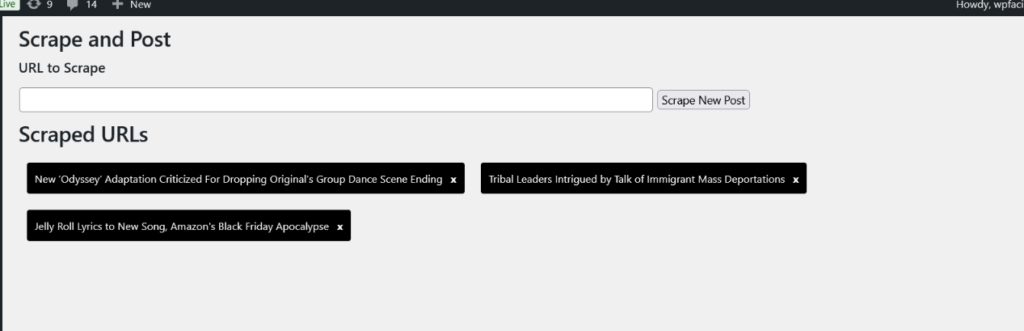
Scrape to Post List can scrape posts from other sites, WordPress or not, save the scraped post to a custom WordPress post type and display a list of scraped posts with a shortcode on any page.

Options to scrape new posts and delete posts from post list
Performative as heck, Compact WP Plugins are created by the great minds at WP Facilitate. We would love to modify and scale them to your specifications and/or create new Compact WP Plugins (or complex plugins) just for you! Contact us now with your questions and required WordPress features

I needed help with making my website responsive and WP Facilitate saved the day! John identified the problem and delivered the solution all on the same day. I’m incredibly grateful for his help. I wouldn’t have been able to do this on my own. Thank you so much!!
The info in this post is used on the front page of WP Facilitate. WP Facilitate, founded by John Beacham, provides affordable, trusted, versatile and passionate WordPress help.